Work & side hustles
One context for client A, another for admin, another for personal. Switch without losing your place.
Windows 11 · Simple · Private
ContextShift remembers which apps and windows you were using — then puts them back when you need that setup again. Great for work, study, gaming, or anything you juggle on one PC.
The Windows app will be available to download soon.
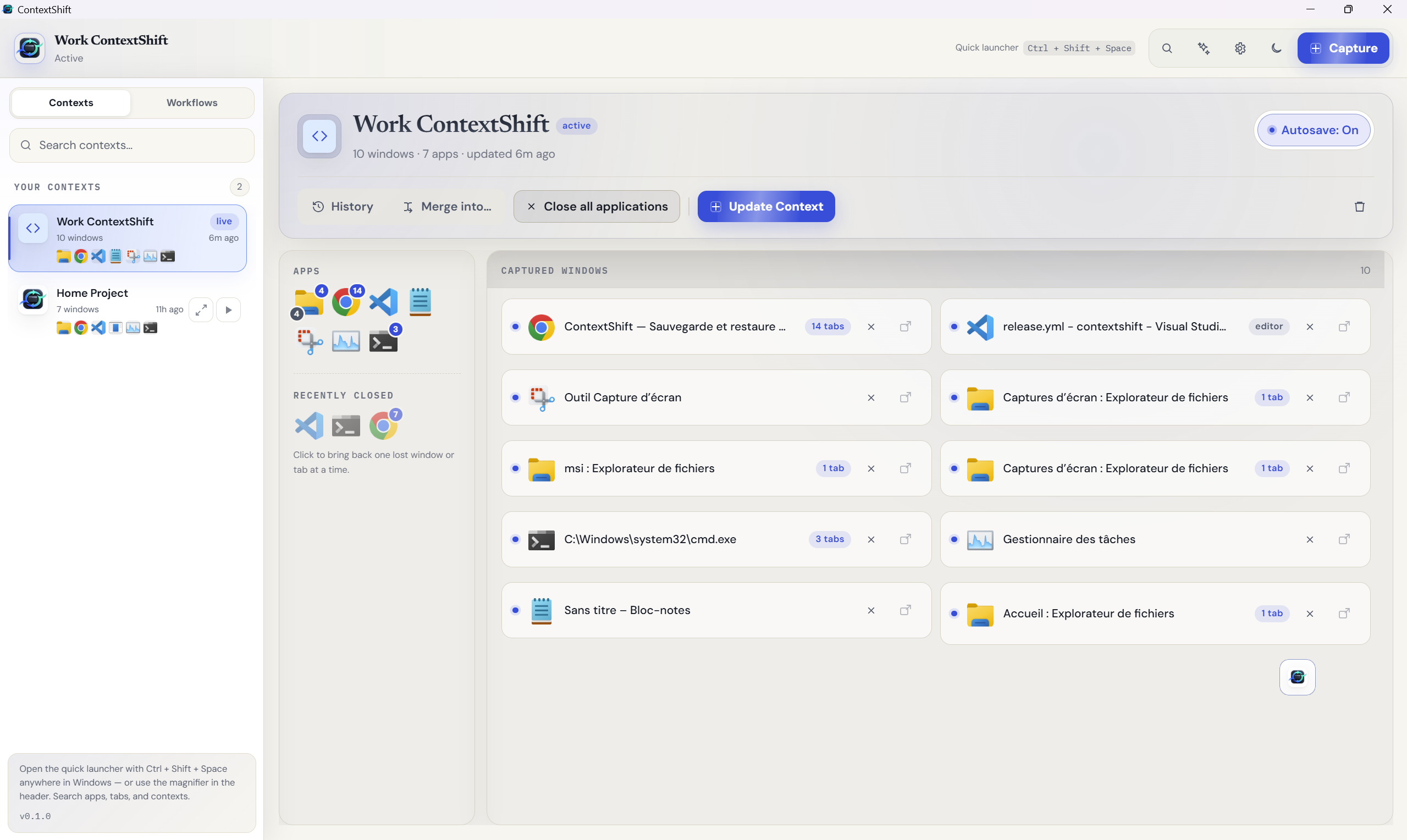
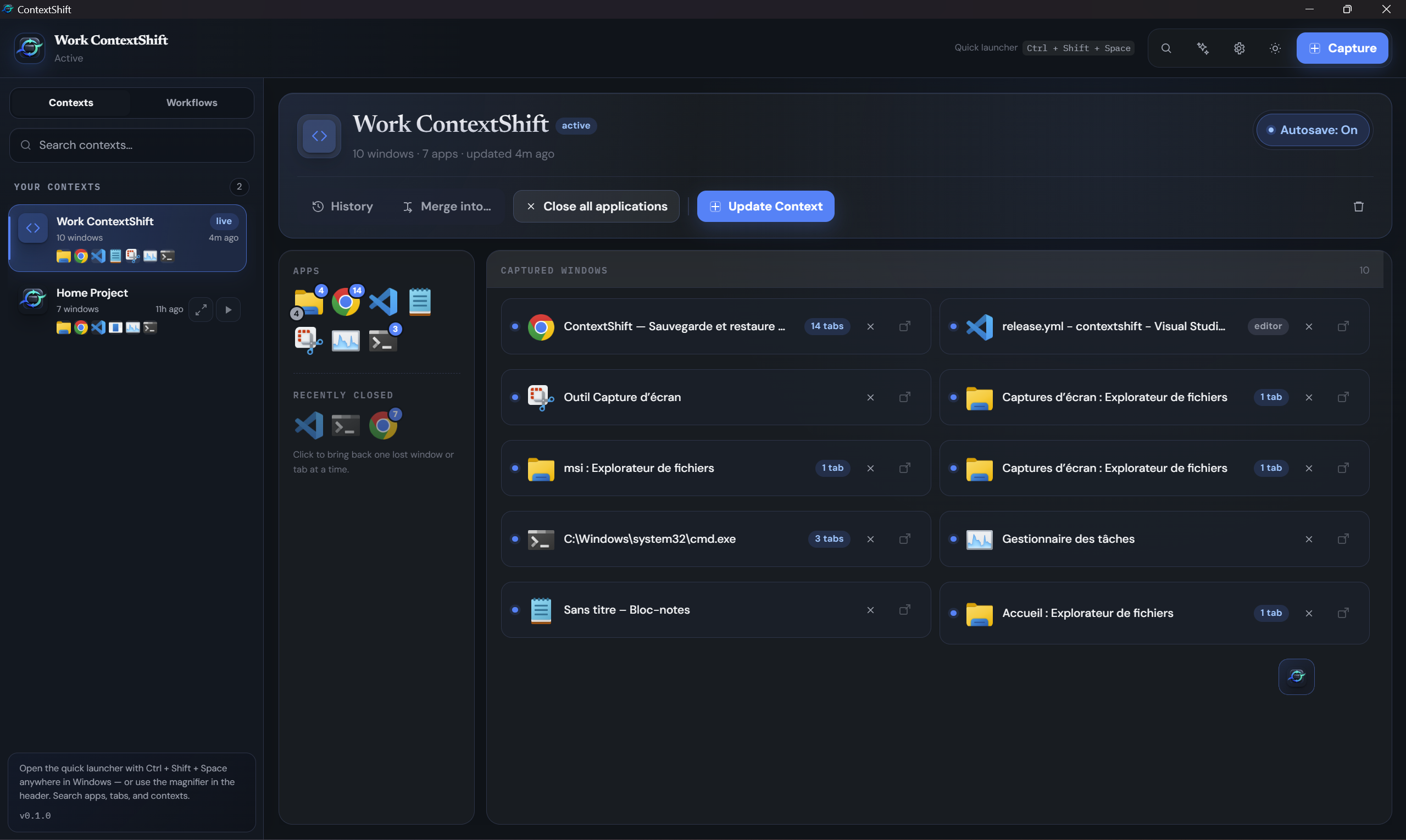
Find the right windows, reopen the browser tabs, put things back on the right screen… every single time. ContextShift turns that into three simple steps
Who it’s for
If you keep several “modes” on the same computer, ContextShift keeps them tidy.
One context for client A, another for admin, another for personal. Switch without losing your place.
Save a stack of tabs, notes, and docs for each course or exam prep — restore when class starts.
Park a work layout before you play, or jump back to a design setup after a break.
Windows go back to the right screens and sizes — not piled on a single monitor.
How it works
A context is simply a saved snapshot of your desktop. Name it, leave it, return whenever you want.
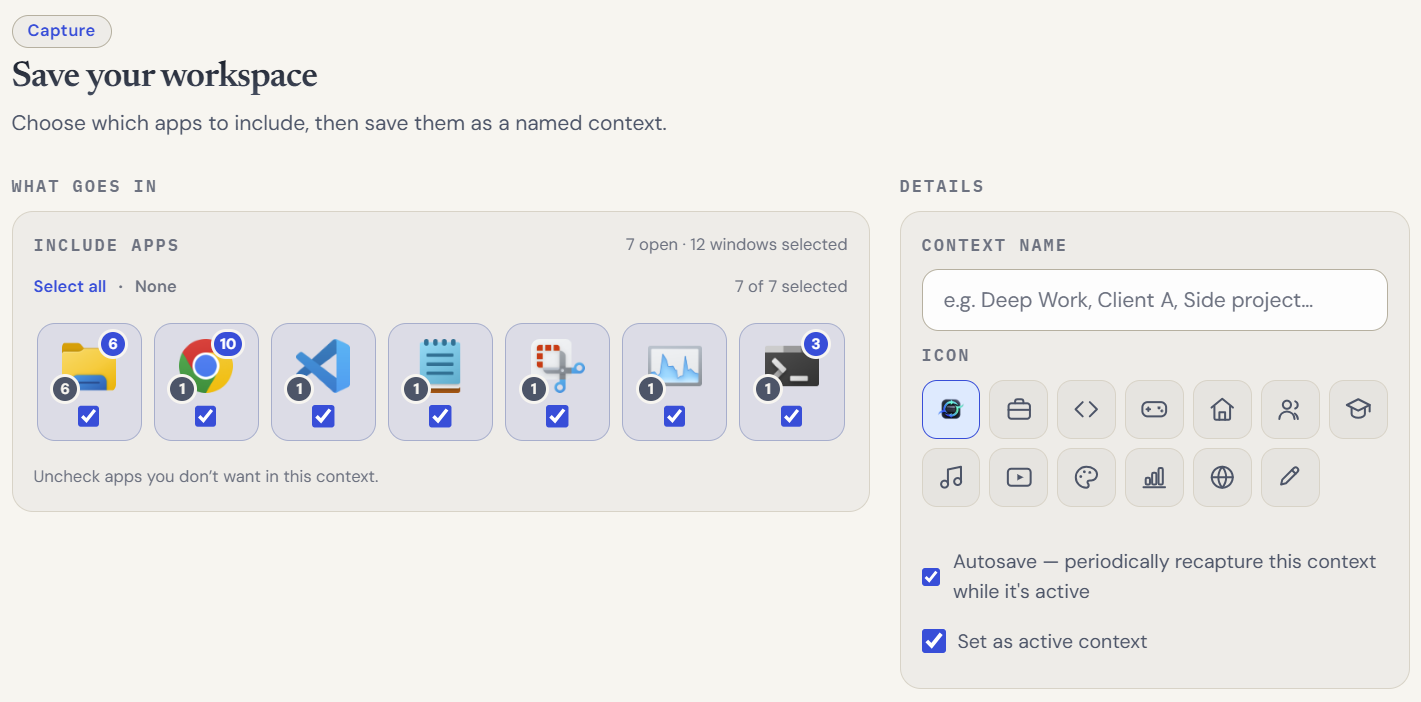
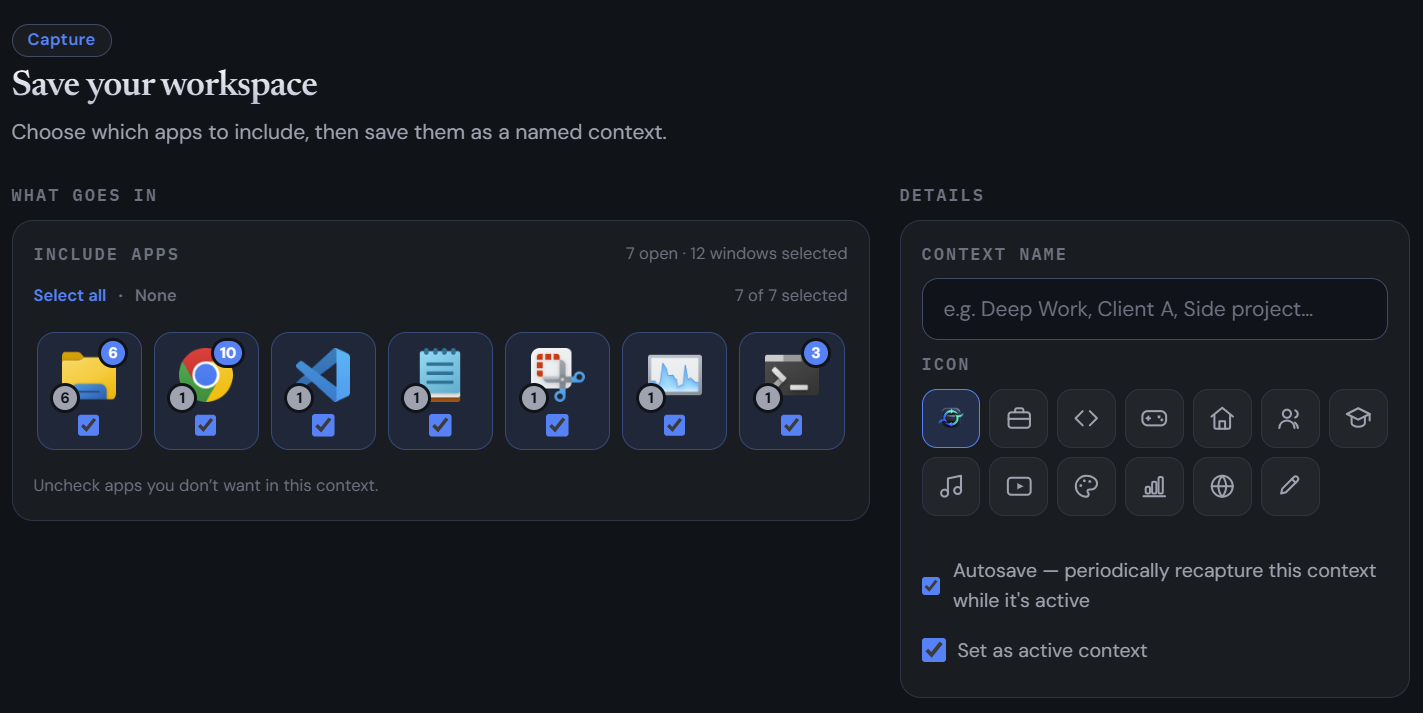
01 — Capture
Open the apps you need, then hit Capture. ContextShift remembers apps, window positions (including multi-monitor), and browser tabs with the free extension.
02 — Switch
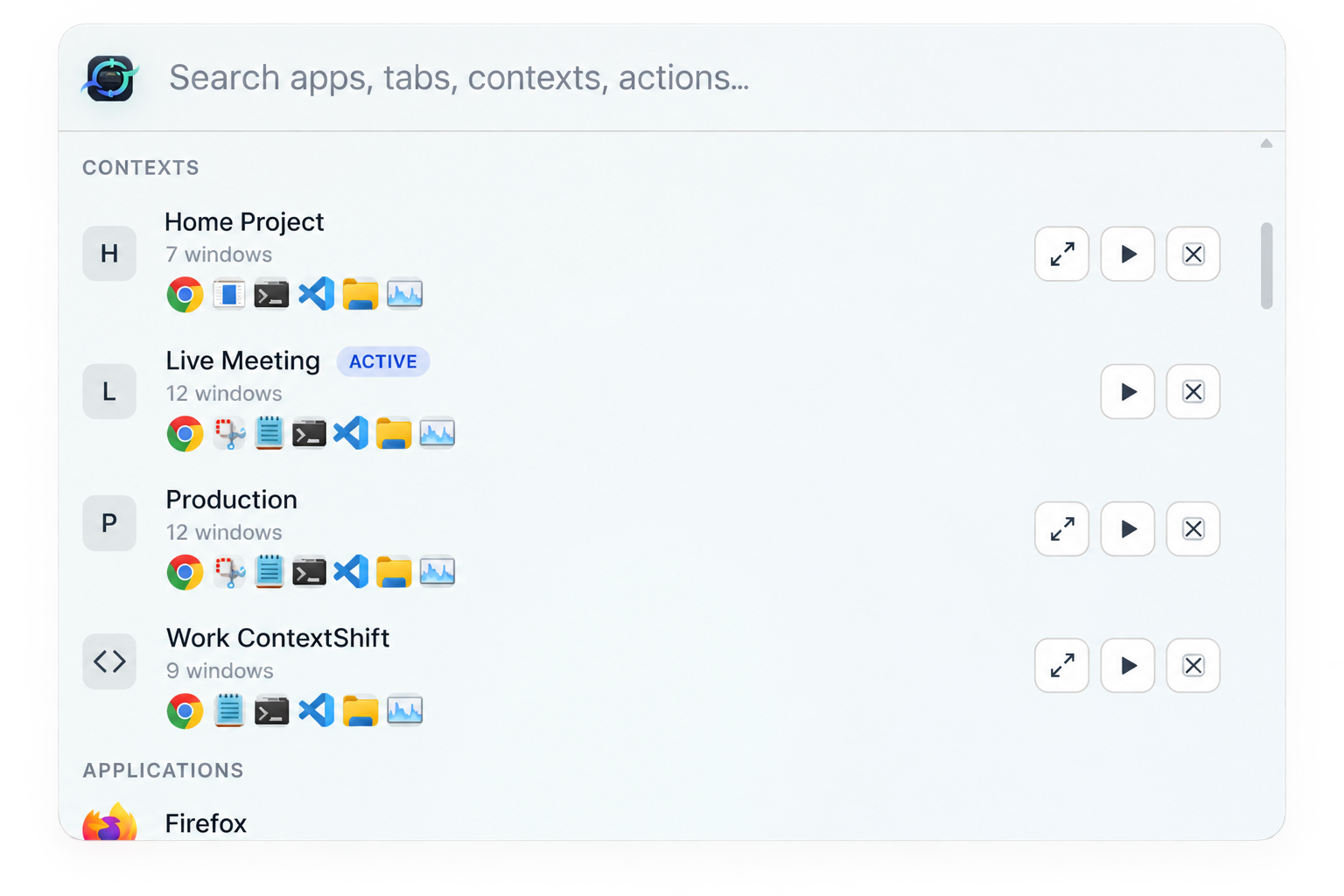
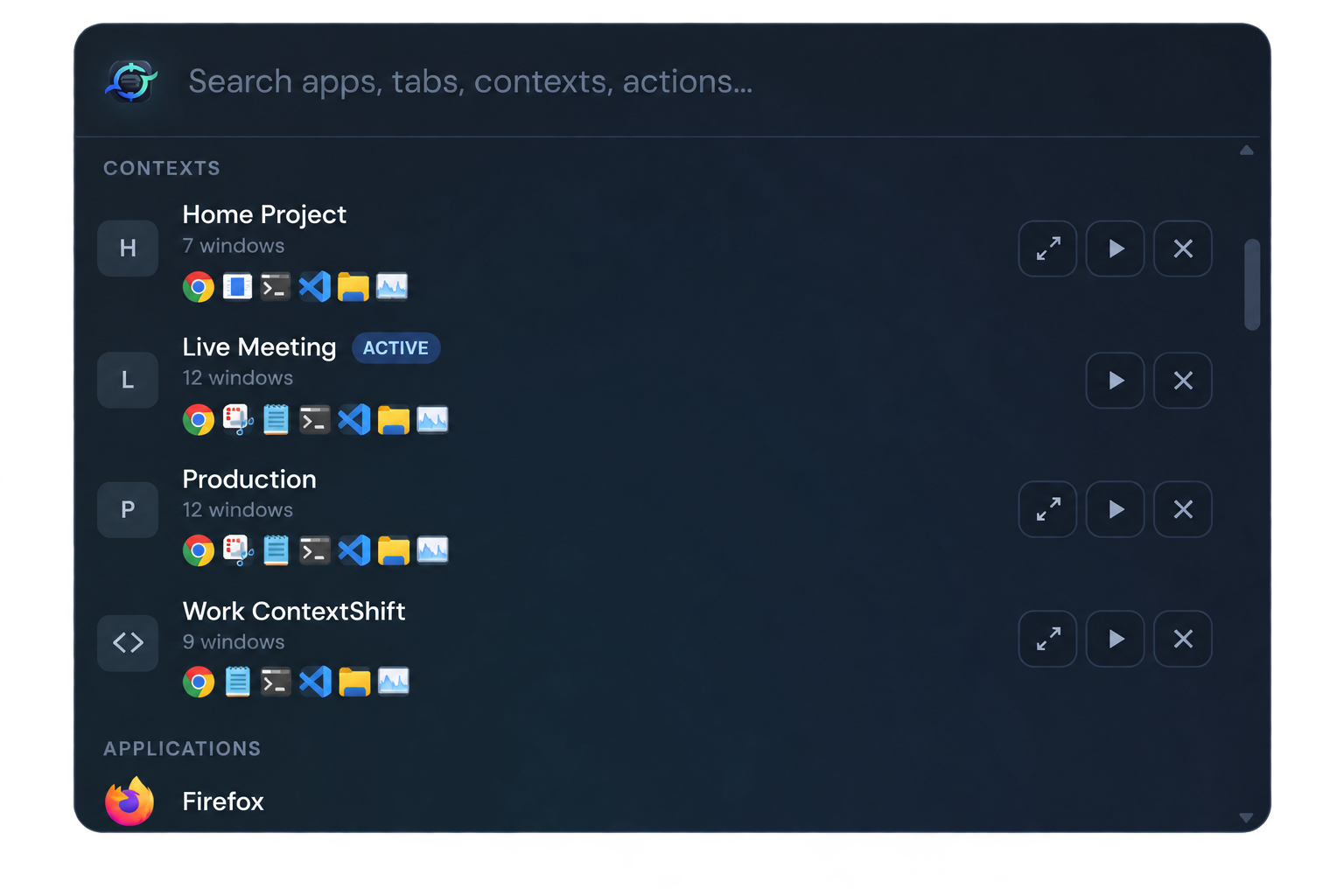
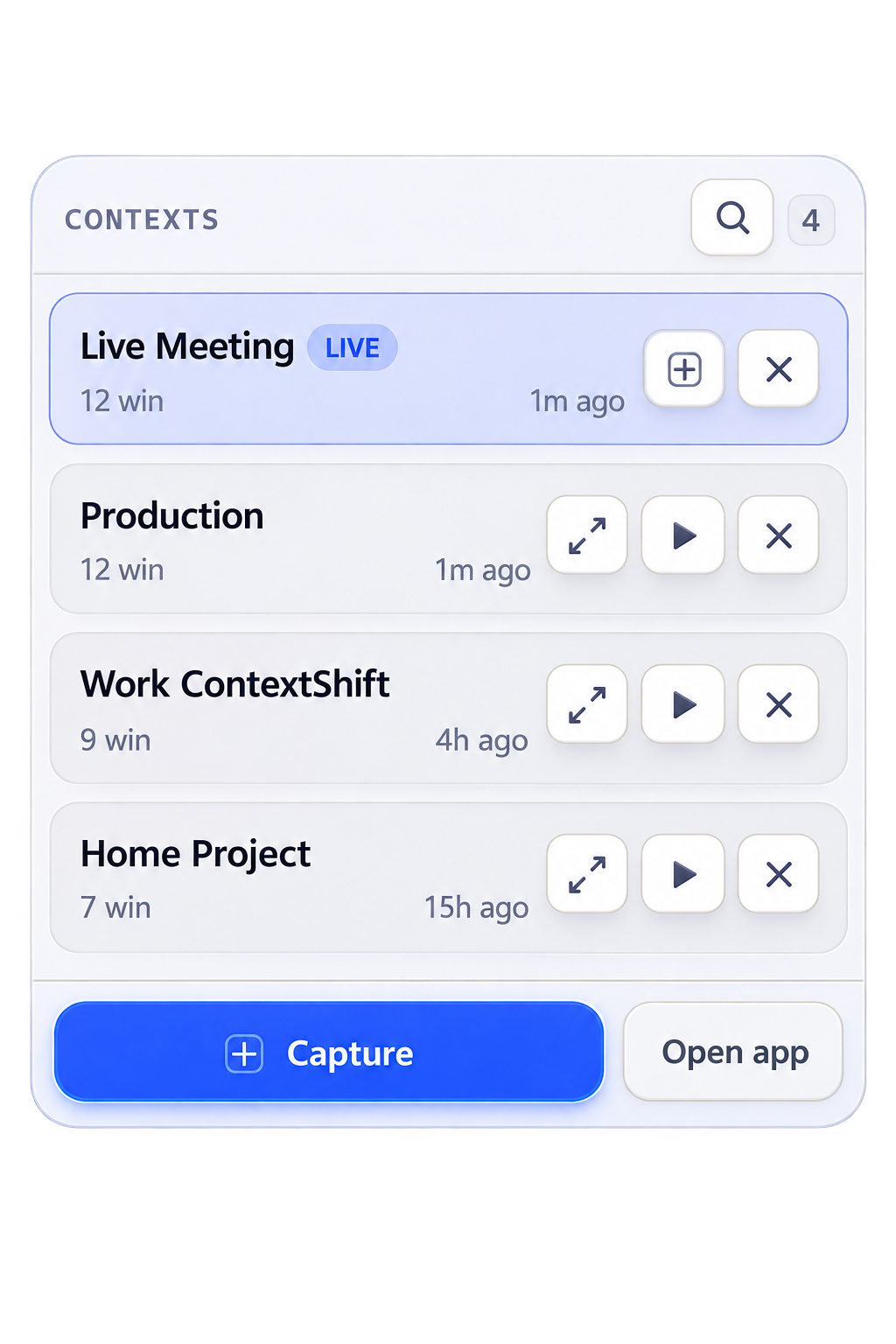
Shift saves your current context, clears the clutter, and opens the one you pick. Use the app, tray, on-screen overlay, or press Ctrl+Shift+Space and choose a context in the Quick Launcher.
03 — Restore
Missing apps relaunch. Windows return to their places. After a reboot, you can rebuild a setup instead of starting from scratch.
More than workspace restore
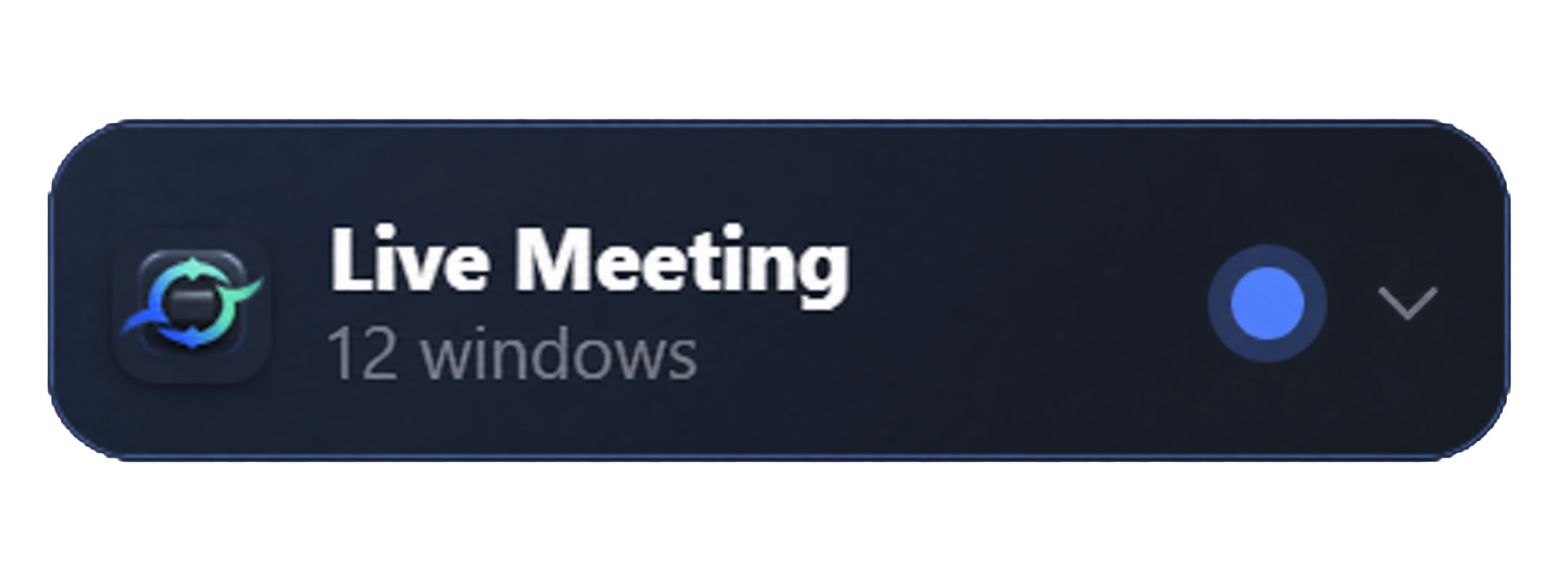
ContextShift stays out of the way until you need it—then puts apps, tabs, contexts, and automations one search away.
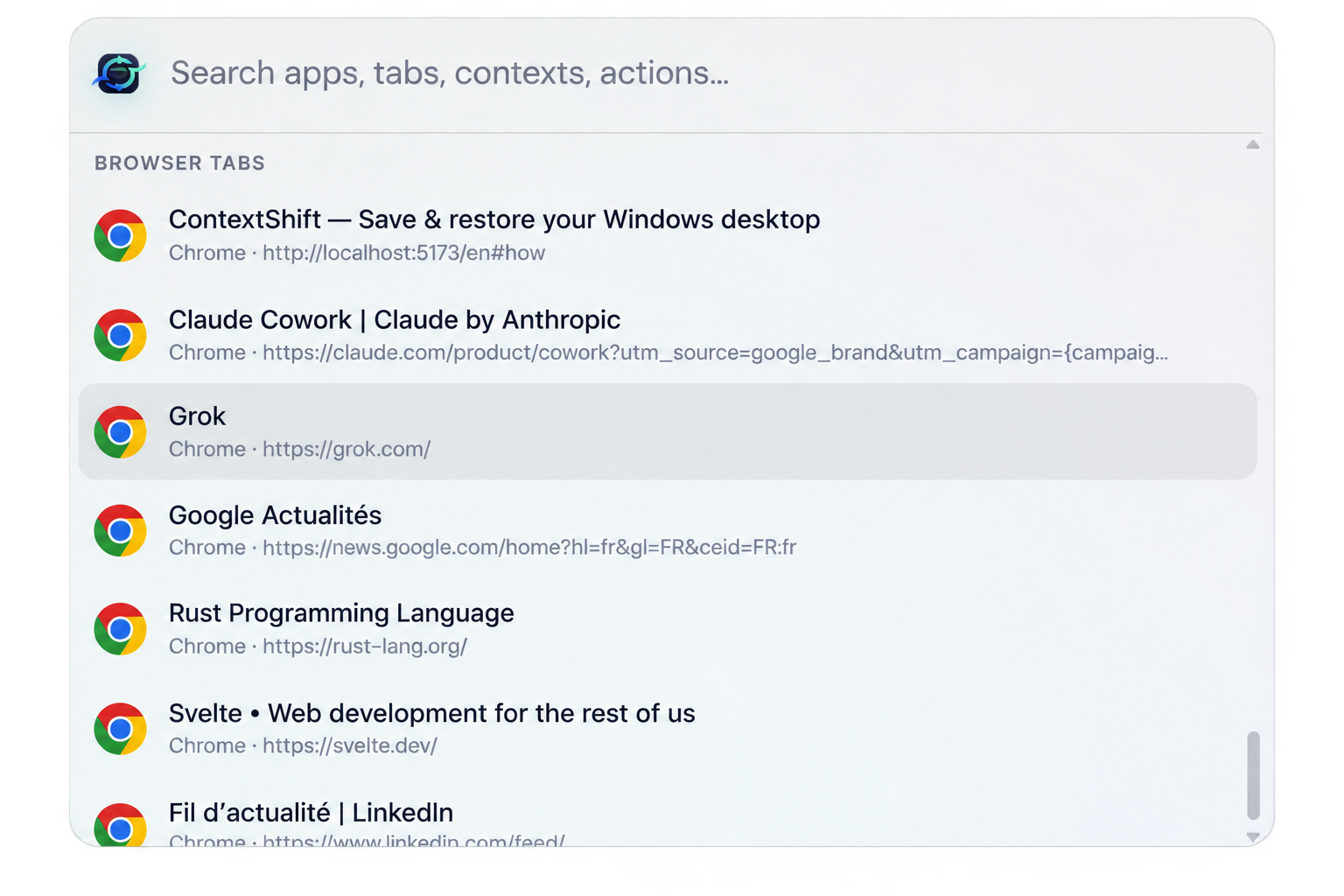
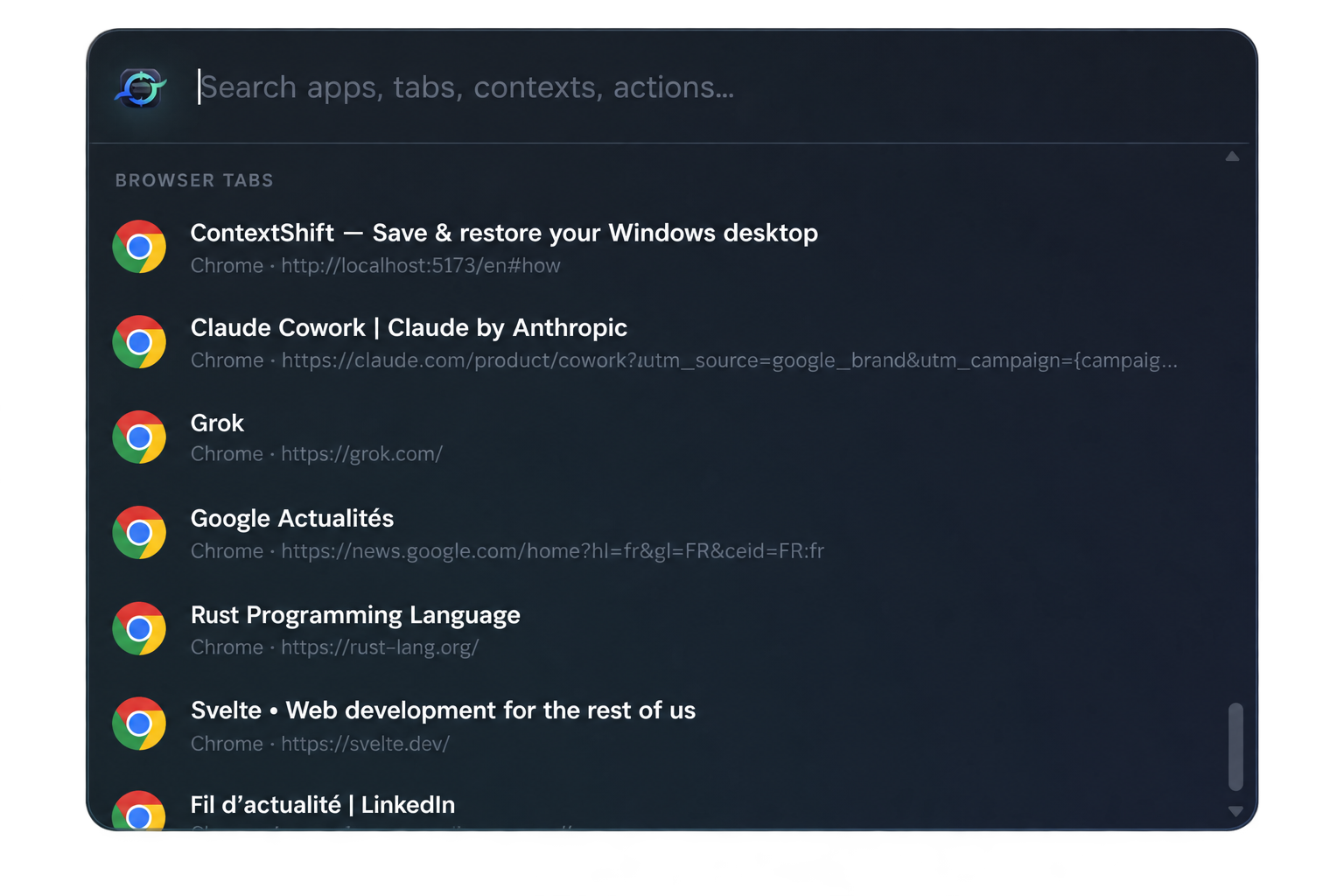
Search installed apps, live windows, browser tabs, contexts, actions, and workflows. Launch an app, raise the exact window, jump to a tab, or Shift your whole desktop from one keyboard-first panel.
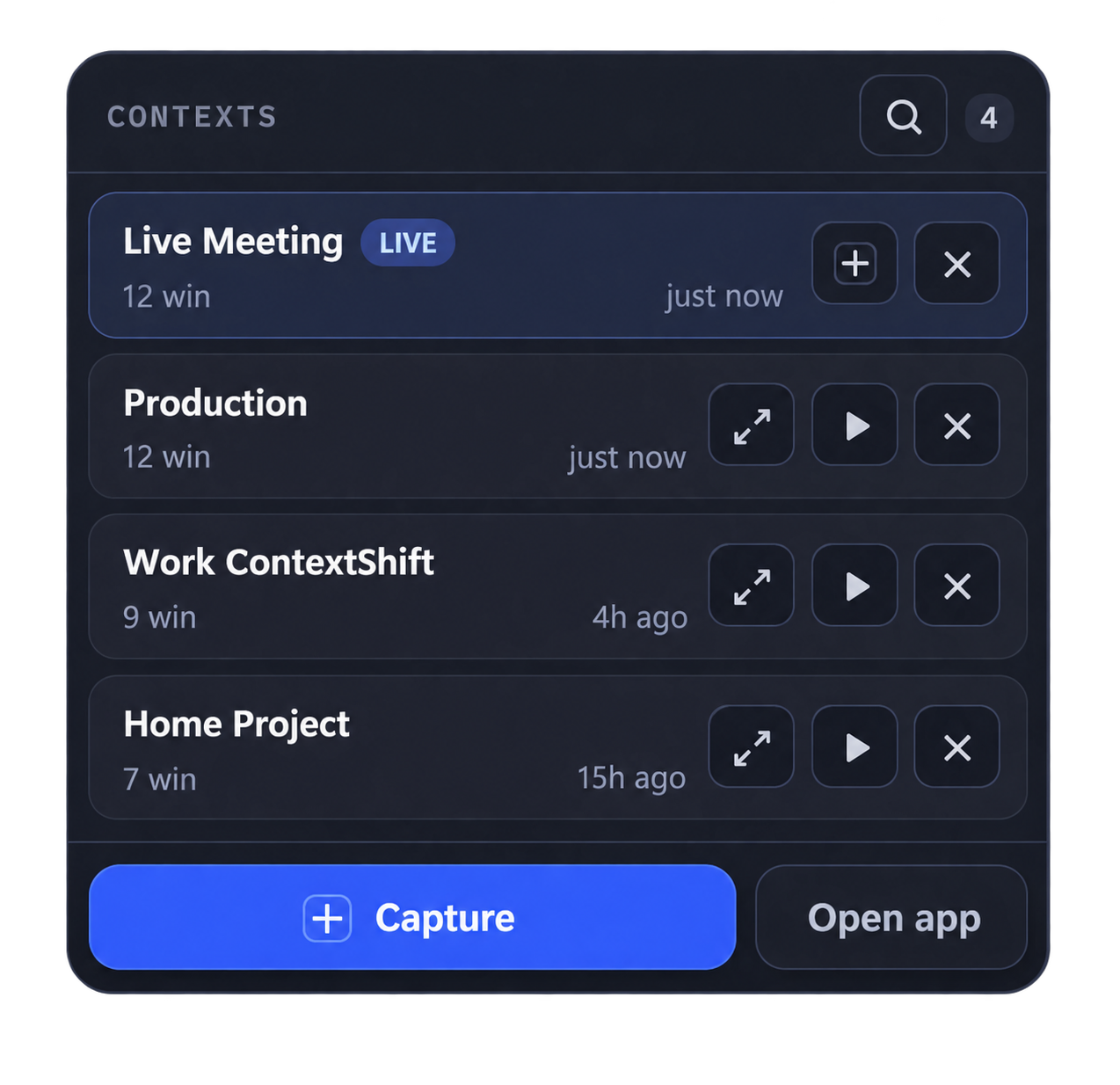
Use the system tray or a draggable taskbar chip to Capture, Update, Shift, Open alongside, or summon the launcher without breaking your flow.
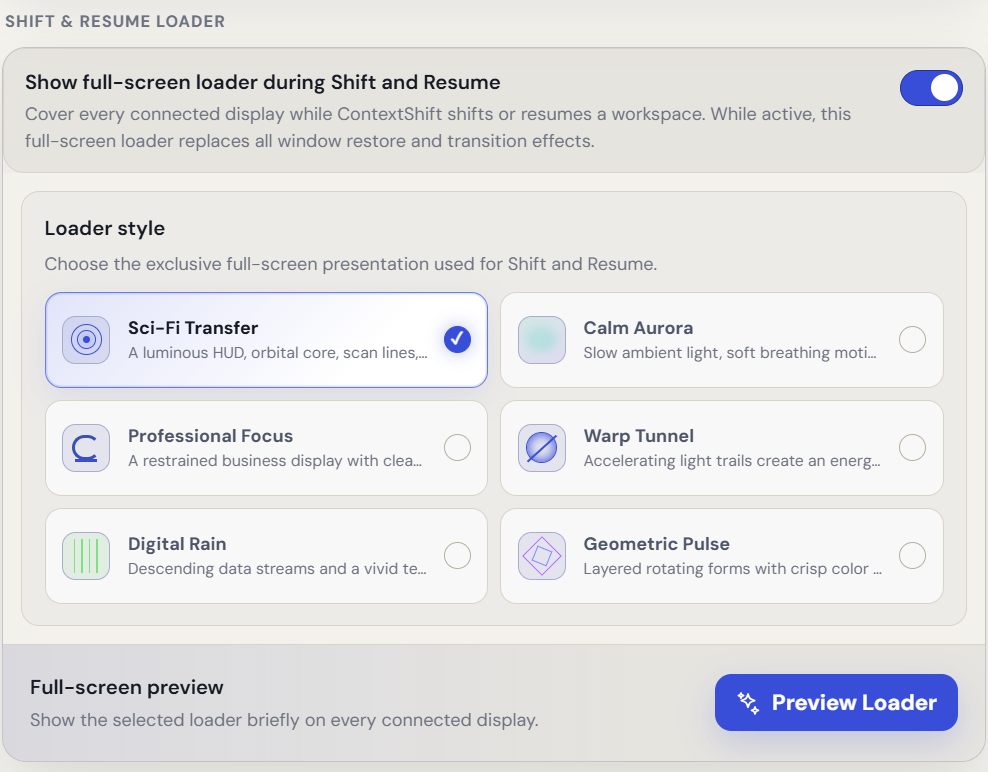
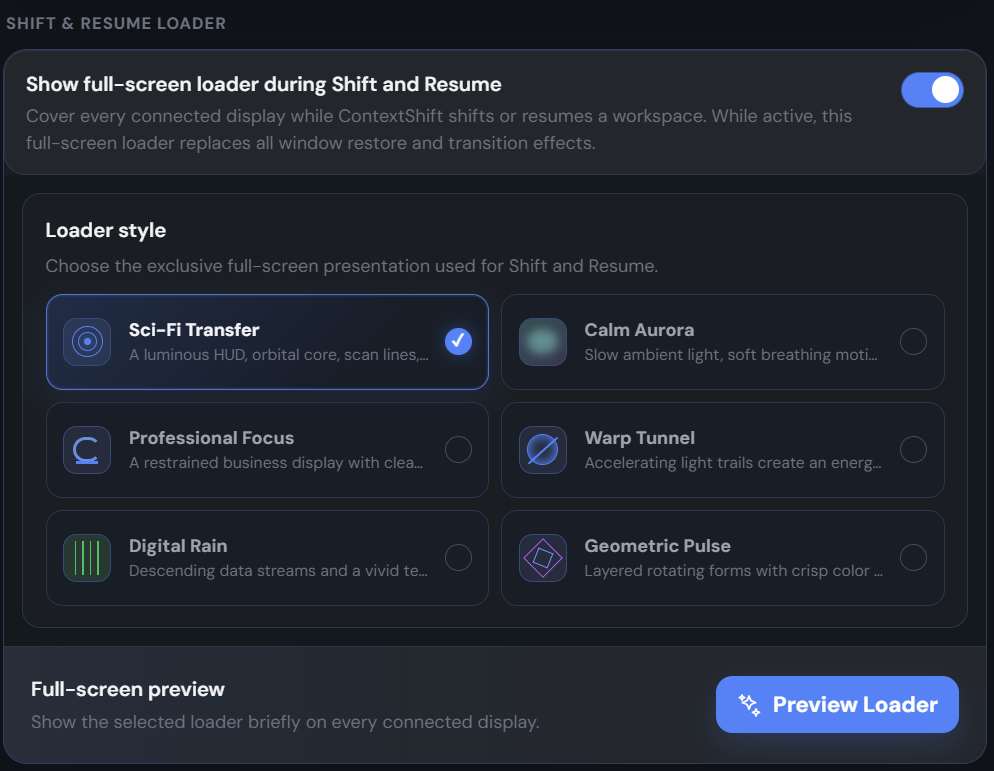
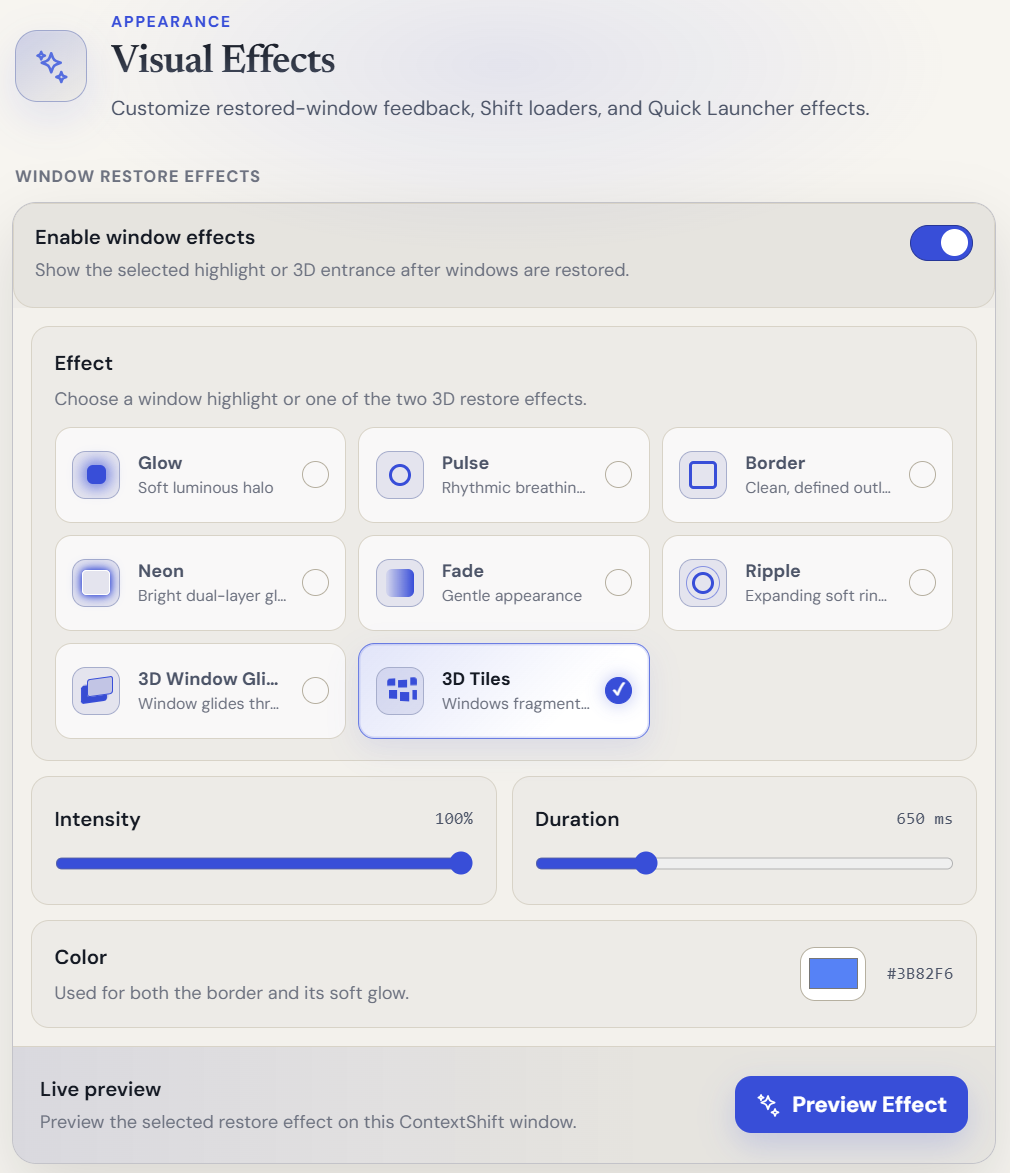
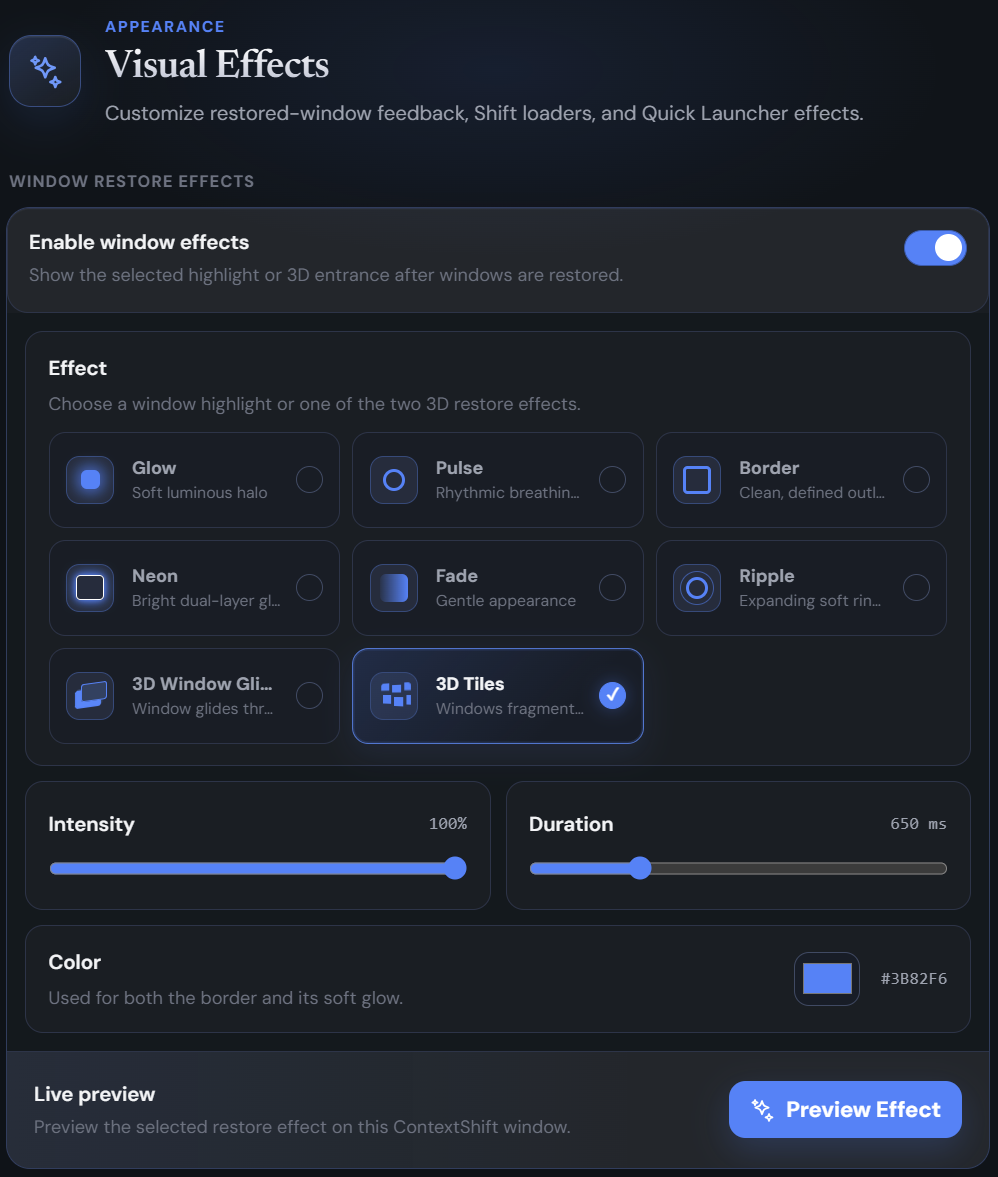
Choose subtle restore outlines, 3D entrances, launcher transitions, and six multi-monitor Shift loaders—then preview every effect before using it.
Automation
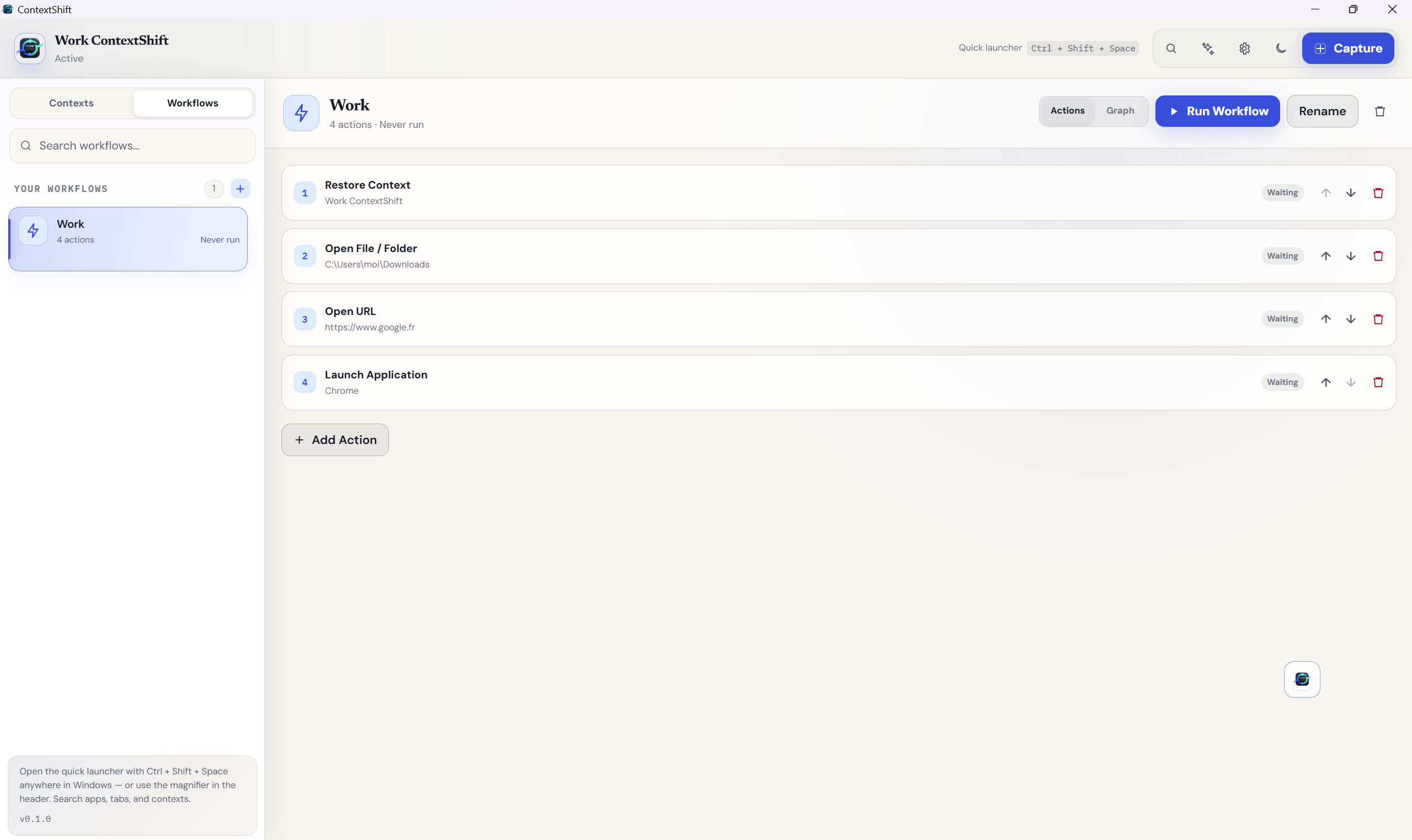
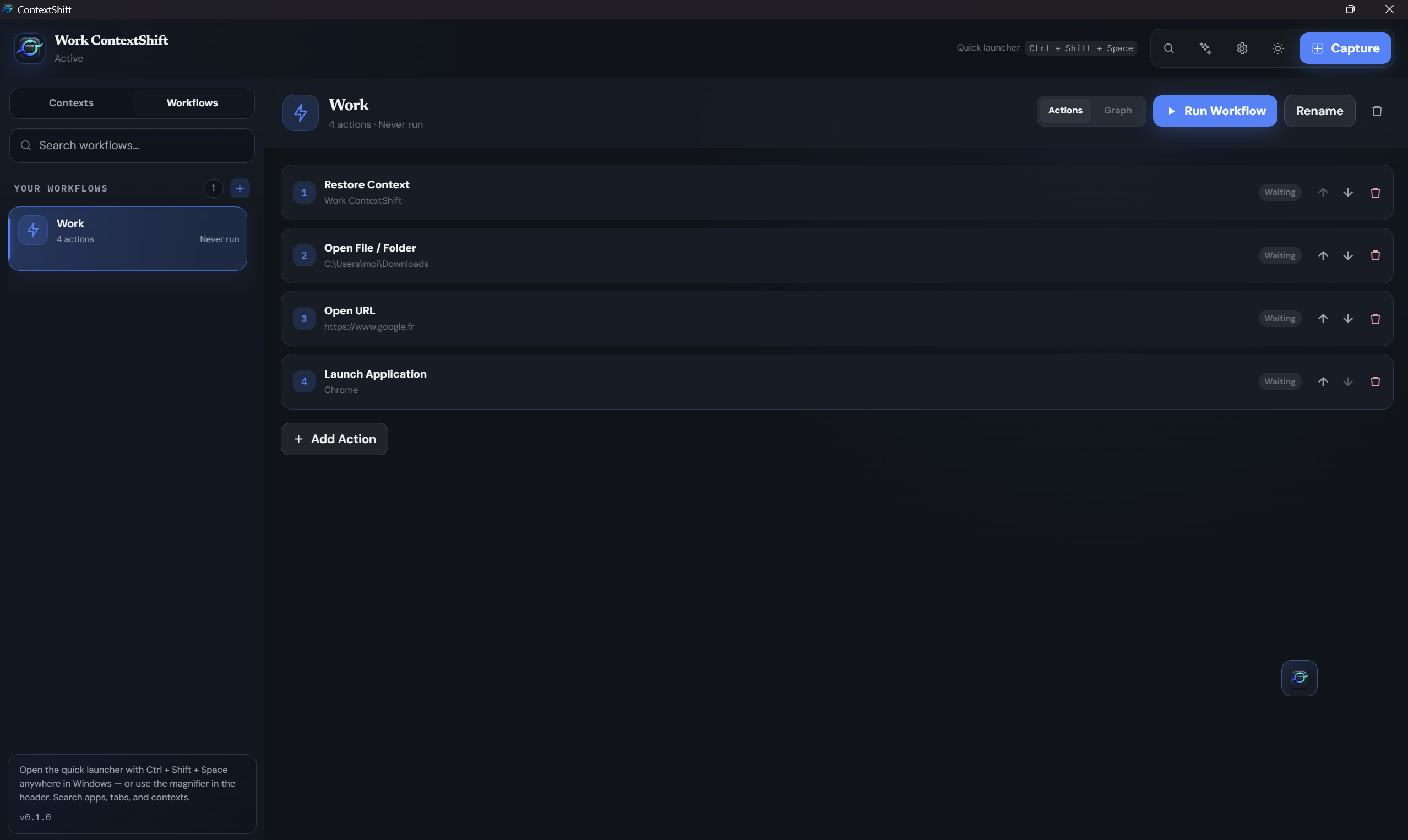
Chain contexts, apps, files, URLs, commands, and delays into a saved workflow. Run it by name from the Quick Launcher — no need to open the app.
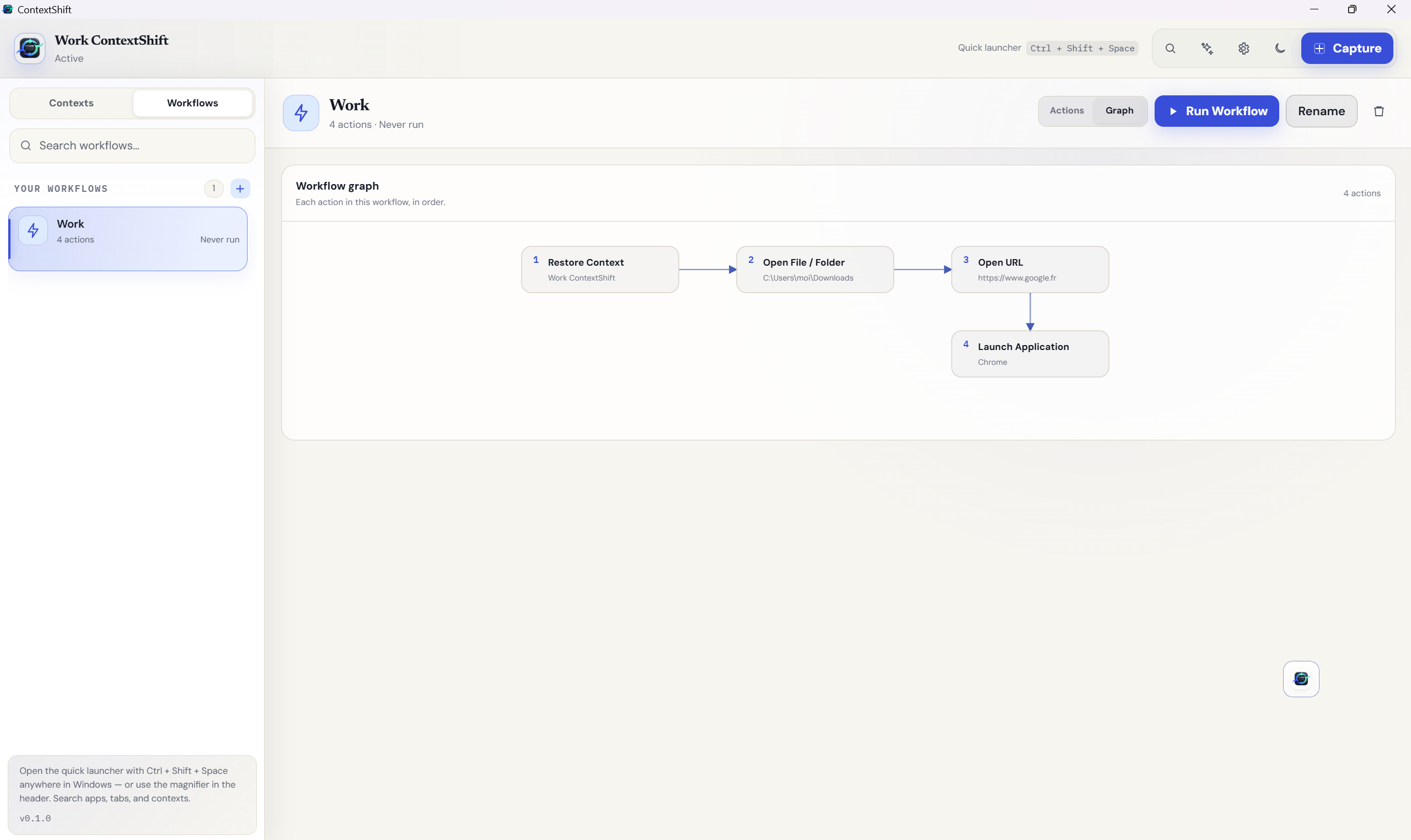
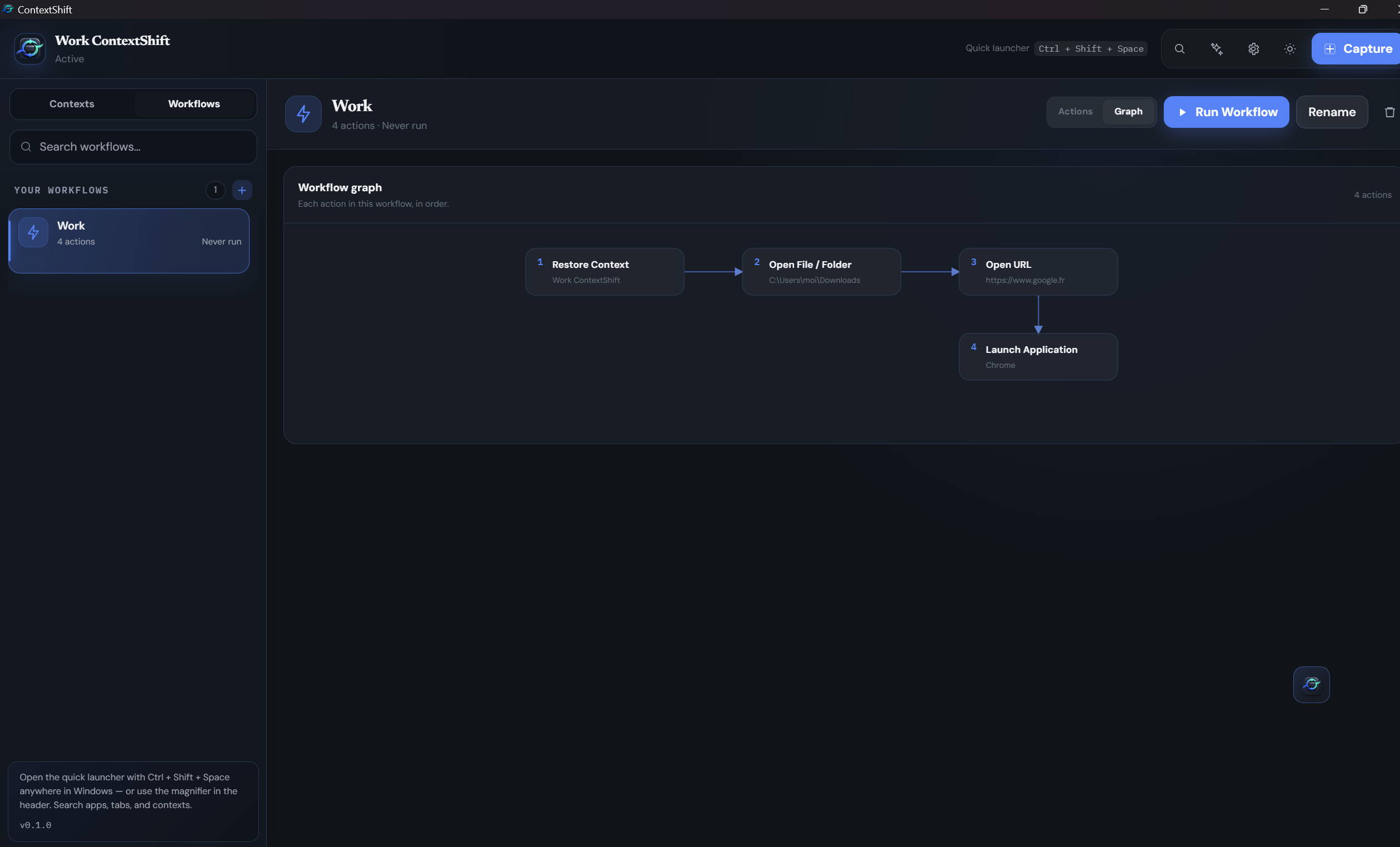
Prefer a plain checklist? Switch to Actions view anytime.
Personalization
From restore effects to the shortcut that opens everything — nothing here is one-size-fits-all.
Precision
A context restores your whole desk. These get you to one window, one tab, one screen — without touching the rest.
The quick launcher (Ctrl+Shift+Space) searches open browser tabs as well as apps and contexts. Pick a tab and it comes to you — the tab switches and its window steps forward. Needs the free browser extension.
Bring a single window to the front without disturbing it. Same position, same size, same screen — nothing is rearranged. A brief outline shows which window was raised.
A small map of your desk next to each window, with its screen lit up. Stop hunting across three monitors for the one you meant.
ContextShift now speaks your language. It follows Windows the first time it opens, and switches whenever you like.
Start with Windows, minimized to the notification area. Your contexts are one click away, without a window in your face at sign-in.
Features
Clear controls in the app, plus shortcuts on your desktop and in the system tray.
Press Ctrl+Shift+Space to search installed apps, open windows, browser tabs, contexts, actions, and workflows. Launch, focus, Shift, or open alongside without hunting through menus.
Save open apps, multi-monitor layouts, browser tabs, and more into a named context you can reopen anytime.
Jump from one context to another without losing what you were doing — ideal when you multitask all day.
Apps that closed are launched again; windows that stayed open move back to the right screens.
Turn it on for a context and ContextShift quietly re-captures it in the background, on the interval you choose — so it’s always ready to restore.
Search the last 10 versions for a lost window, browser tab, Explorer folder, or terminal shell. Add back only what you need and reopen it—without rolling back the rest of your context.
Chain context, application, file, URL, command, and delay actions. Watch the whole sequence as a flowchart or edit it step by step, follow a run live, stop it, and launch saved workflows by name or alias from the Quick Launcher.
Launch a missing captured window, bring a live one forward, or request a normal close that preserves the app’s unsaved-work prompt — one window, or every window in a context with a single click.
Choose subtle outlines or 3D restore effects, Quick Launcher transitions, and six full-screen multi-monitor Shift loaders. Preview every effect in Settings.
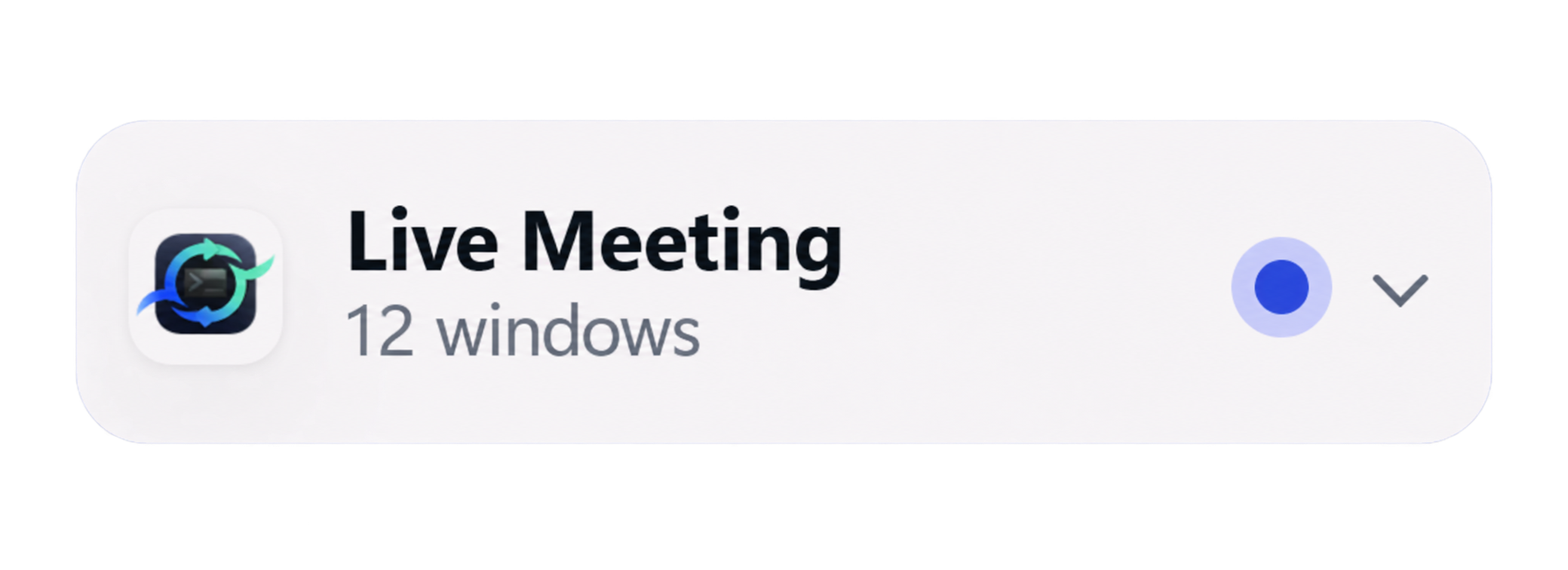
A small chip above the taskbar shows your active context. Click it to switch or Capture a new one — no need to open the main window. Optional: turn it off anytime in Settings.
Keep ContextShift in the tray and open alongside or Shift without cluttering your taskbar.
Your contexts stay on your PC. No account required for the trial, no tracking of your workspace.
Install the optional free extension so every tab is saved — not only the one in the address bar.
A calm interface that matches your system preference — easy to read for long sessions.
Plays nicely with the apps you already use
Browsers
Windows alone only knows the current page. Our free extension for Chrome, Edge, Brave, and Firefox saves the full set of tabs.
Only the page you’re looking at is saved. Other tabs won’t return. The app shows a clear badge so you always know.
Each capture can include every open tab. When you restore, ContextShift reopens the full set in a new window.
Install the free official companion from your browser’s store. It connects locally to ContextShift—your tabs are never sent to our servers.
Requires the ContextShift desktop app for Windows 11Privacy
No forced account, no cloud sync of your windows, no product analytics built in. ContextShift is built to work offline on your machine.
FAQ
Straight answers before you install.
Yes. Open the quick launcher (Ctrl+Shift+Space, or the magnifier in the app) and type — open browser tabs appear alongside apps and contexts. Pick one to switch to it and bring its window forward. It needs the free browser extension, since only the extension can select a tab.
Yes. Every window in a context has a button that raises it without moving it — same position, same size, same screen — and a brief outline marks which window was raised. The quick launcher can raise windows the same way. On a multi-monitor desk, a small map next to each window shows which screen it is on right now.
The app is available in English, French, Spanish and Japanese. It follows your Windows language the first time it runs, and you can change it any time in Settings.
Yes, from Settings. It starts minimized to the notification area, so your contexts are one click away without a window opening during sign-in. It is a per-user setting and needs no administrator rights.
No. If you can install a normal Windows app, you can use ContextShift. Capture, switch, and restore are designed for everyday use — work, study, or personal projects.
Windows 11. The desktop app installs like any modern Windows application.
A small chip in the bottom-right corner shows your active context. Click it to Shift or Capture a new one without opening the main window. You can turn it off or choose a compact icon-only size in Settings.
No. Contexts are stored on your computer. We don’t require a cloud account for the trial, and we don’t ship analytics that upload your workspace.
Turn it on for a context (from its detail view or the Capture screen) and ContextShift quietly recaptures it in the background on the interval you set in Settings — always up to date, no manual re-Capture. It’s part of the trial and paid tiers; it pauses once the trial ends unless you activate a license.
Without it, Windows only exposes the tab you’re looking at. With the free extension, every tab can be saved and restored together.
For windows that aren’t part of the context you’re shifting to, Shift sends a standard close request (WM_CLOSE), not a forced kill, so an app with unsaved changes can still prompt you before it closes. Windows already in your target context are just repositioned, not touched. Still, save important documents as you normally would.
Virtual desktops hide windows that stay in memory. ContextShift can save a setup to disk and rebuild it later — even after a restart — by reopening apps and placing windows again.
You get every feature free for 14 days. After the trial, you can keep capturing and managing contexts, restore one chosen context, use the Quick Launcher, and recover individual items from history. Unlimited context switching and autosave require a license.
Full features, no account required. After the trial, manual context management, the Quick Launcher, history recovery, and one fully restorable context stay free. Unlimited switching and autosave require a license.